Validate Data
How do I validate data?
Automated Flags
Timeseries data are automatically invalidated for time-periods that overlap site visits. The system uses the expected frequency (see the section about quantites for more info) of each quantity defined for a given station to determine which data points are invalidated.
Auto-invalidations from site visits are visible on the Data Review page timeseries plot, appearing as orange X's.
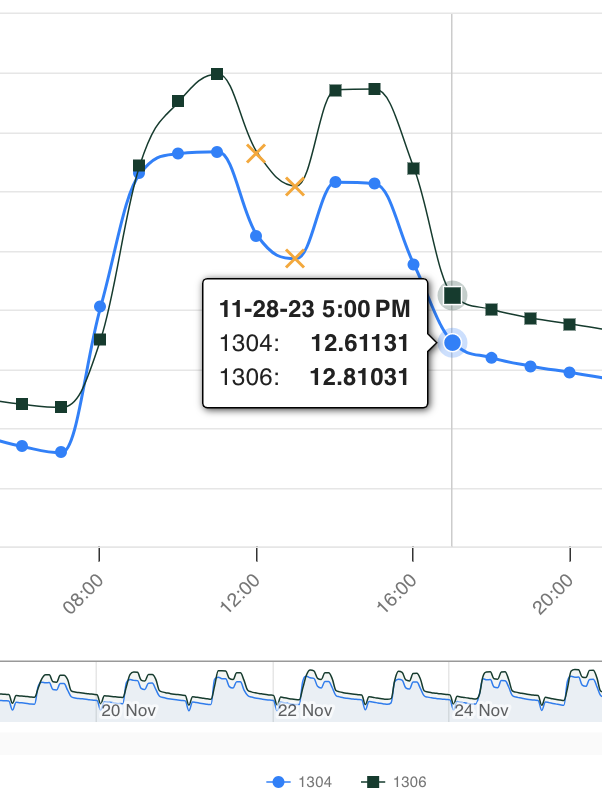
!!! ALL TIMESERIES DATA IS ASSUMED TO BE TIME-ENDING !!!
       start_ts     Site visit period        end_ts
          +------------------------------------+
     ___________^___________^___________^___________^
               ts          ts          ts          ts
    |>         <|
  time-ending period
Manual Flagging
Manual invalidations are set on the Data Review page timeseries plot. Use the page filters tray to select a station type, one or more stations, and a quantity. Select one data point by clicking on it, or many data points with a click-and-drag motion inside the plot area.
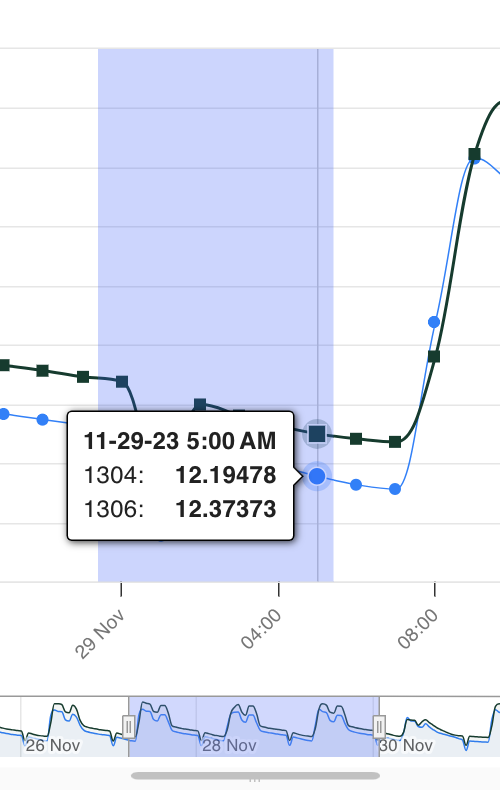
Either method will bring up a modal window to set a new flag.
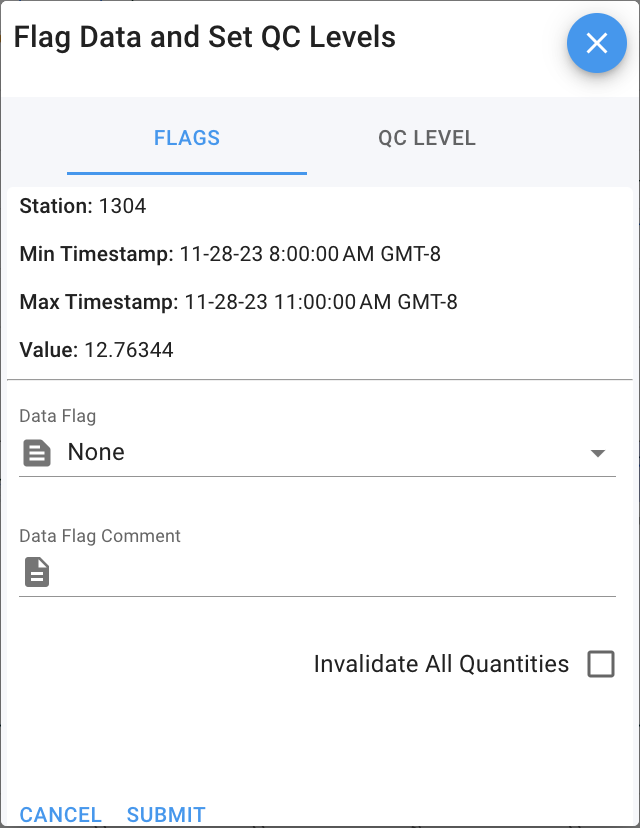
- Confirm the time period for the invalidation
- Select the flag type
- Choose a comment: begin typing to filter existing comments that may match. Otherwise, type out a new comment.
- Optionally, check the "invalidate all quantities" if the flag is relevant to all quantities at the site (e.g. a site visit).
QC Levels
Quality Control (QC) levels establish a heirarchy for data quality in OLIVE. All incoming data inserted into the OLIVE database is given QC Level 0 by default. After each subsequent review by data analysts, the level may be raised to indicate its readiness for export and reporting. The basic heirarchy is:
- Level 0: Raw Data
- Level 1: Data has been reviewed for anomalies and checked against site visits (usually done one week at a time).
- Level 2: Data and any flags have been reviewed by a second analyst; data are ready for reporting (usually done monthly).
- Level 3: Data have been reported and are considered final.
OLIVE has two important safeguards to prevent data from being altered or overwritten once it passes certain quality levels:
- Level 0: If replacement data are inserted via manual upload or otherwise overwritten, data may be deleted.
- Level 1: The API prevents data from being deleted at this level or greater. Flags/invalidations may be added or revised.
- Level 2: Same as Level 1.
- Level 3: Data may not be altered in any way. The API prevents flags from be added or revised, and prevents data from being deleted or changed.
To set the QC Level, follow the same approach used for invalidating a range of data points. Once the modal has appeared, click the "QC Level" tab. Choose the level value and check the box for "all quantities". Click submit, and confirm that the QC level now matches in the QC Level summary plot below the main timeseries plot.
