Component Wrapper
Overview
Several of the components in the application (e.g., charts, maps, etc.) have a component wrapper. The component wrapper allows for things like links, tooltips, and popout modals to be added to the component.
Component Wrapper features:
- Links
- Tooltips
- Expand
Links
Links allow navigation to another page in the application. Links are optional and are not configured for all components.
The Link button  is displayed in the top right corner of the component wrapper.
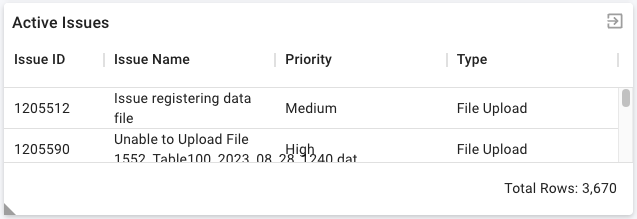
Figure: Above image shows a link for the 'Active Issues' data grid on the 'Compliance Dashboard' page. In this example, selecting the 'Link' button navigates the user to the 'Issues' page.
Tooltips
Tooltips provide additional information for a component. Tooltips are optional and are not configured for all components.
The Tooltip button  is displayed in the top right corner of the component wrapper. If a link is also configured, the Tooltip button is displayed to the left of the
Link button.
is displayed in the top right corner of the component wrapper. If a link is also configured, the Tooltip button is displayed to the left of the
Link button.
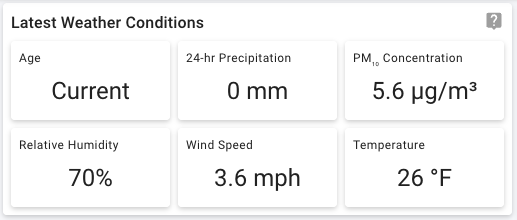
Figure: Above image shows a tooltip for the 'Latest Weather Conditions' card on the 'Compliance Dashboard' page. In this example, hovering over the 'Tooltip' button displays the tooltip content in the image below.
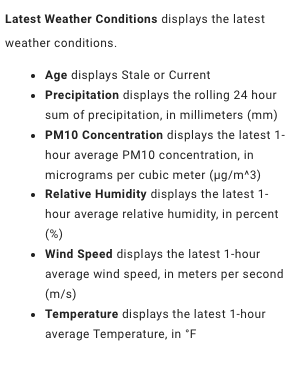
Figure: Above image shows the content of the tooltip when hovering over the 'Tooltip' button for the 'Latest Weather Conditions' card on the 'Compliance Dashboard' page.
Expand
Expand allows a component to be enlarged to approximately 75% of the screen resolution thus allowing the contents to be more easily viewed. Expands are optional and are not configured for all components.
The Expand button  is displayed in the bottom left corner of the component wrapper and is only visible when hovering.
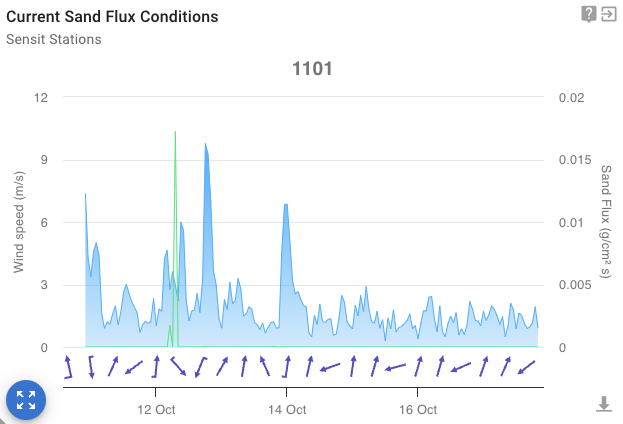
Figure: Above image shows an expand for the 'Current Sand Flux Conditions' wind barb chart on the 'Compliance Dashboard' page. In this example, selecting the 'Expand' button expands the chart into a modal view, which can be seen in the image below. This chart is also configured to display a link and a tooltip.
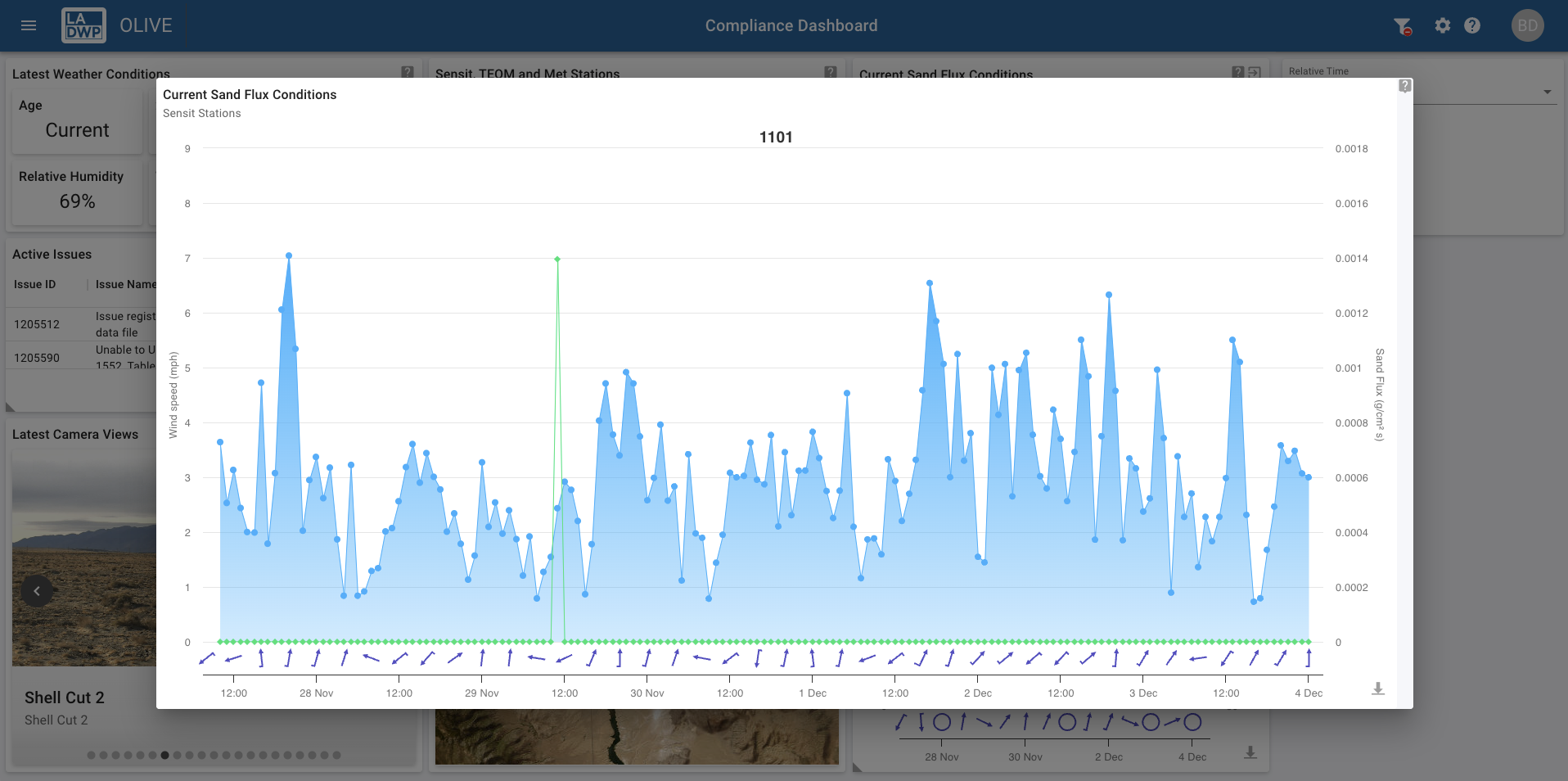
Figure: Above image shows the modal for the 'Current Sand Flux Conditions' wind barb chart on the 'Compliance Dashboard' page.