Working with Maps
Overview
Map ...
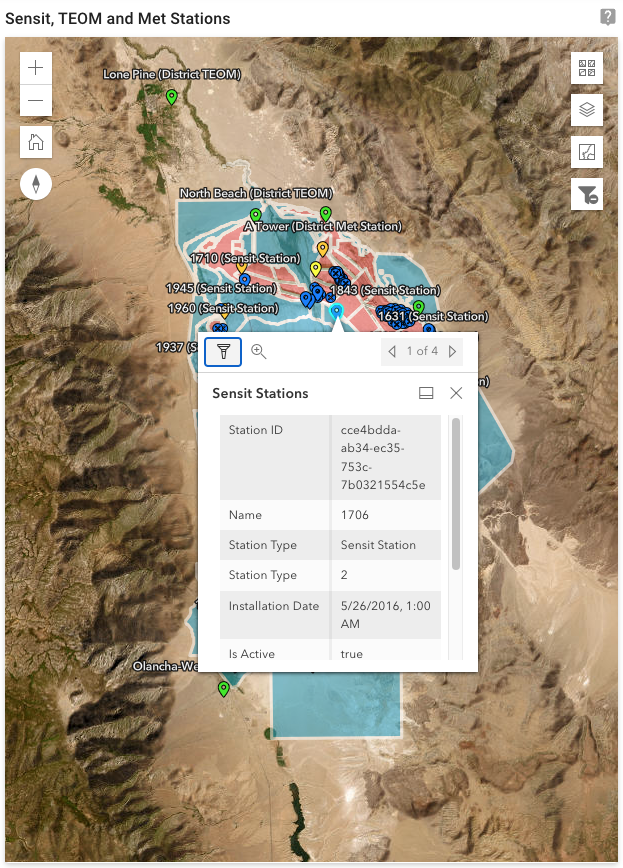
Figure: Above image shows the 'Sensit, TEOM and Met Stations' map on the 'Compliance Dashboard' page.
Map features:
- View Map Popup
- Filter using a Map Feature
- Change Basemap
- Turn Map Layers On/Off
- View Map Legend
- Zoom Map In/Out
- Default Map View
View Map Popup
Information details for a feature on the map can be displayed in a map popup. Selecting a map feature will display the popup.
Select the Close button  in the top right corner of the dialog to close the popup.
Select the Dock button  in the top right corner of the dialog (to the left of the Close button) to dock the popup to the bottom of the map.
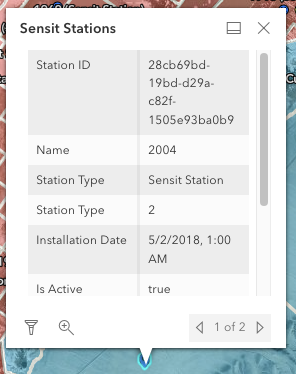
Figure: Above image shows a map popup for a sensit station on the 'Sensit, TEOM and Met Stations' map on the 'Compliance Dashboard' page.
Filter using a Map Feature
Filters can be applied to a selected feature on the map. To apply a filter, select a map feature. In the popup dialog, click the Filter button.
The Filter button  is displayed in the bottom left corner of the popup dialog.
If a filter is applied on the map, the Applied Filter button is visible.
The Applied Filter button  is displayed in the top right corner of the map (below the Legend button).
Change Basemap
The basemap for a map can be changed using the Basemap Selector button.
The Basemap Selector button  is displayed in the top right corner of the map. Selecting the button will expand and collapse the basemap dialog.
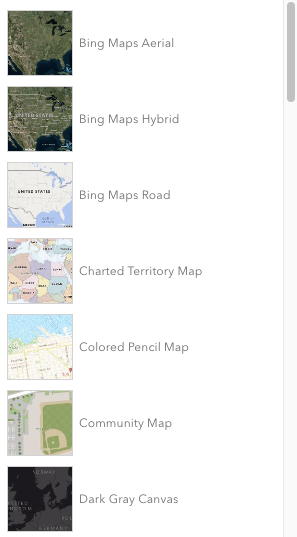
Figure: Above image shows available basemaps.
Turn Map Layers On/Off
Layers in a map can be toggled on/off using the Layers button.
The Layers button  is displayed in the top right corner of the map (below the Basemap Selector button). Selecting the
button will expand and collapse the layers dialog.
is displayed in the top right corner of the map (below the Basemap Selector button). Selecting the
button will expand and collapse the layers dialog.
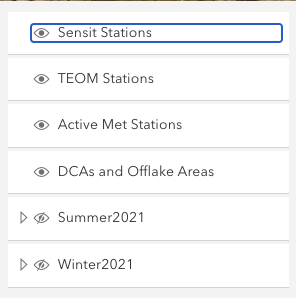
Figure: Above image shows visible and hidden layers dialog for the 'Sensit, TEOM and Met Stations' map on the 'Compliance Dashboard' page. In this example, the top four layers are visible, and the bottom two are hidden. Selecting individual layers in the dialog will set their visibility.
View Map Legend
A legend can be displayed for map using the Legend button.
The Legend button  is displayed in the top right corner of the map (below the Layers button) . Selecting the button will
expand and collapse the legend dialog.
is displayed in the top right corner of the map (below the Layers button) . Selecting the button will
expand and collapse the legend dialog.
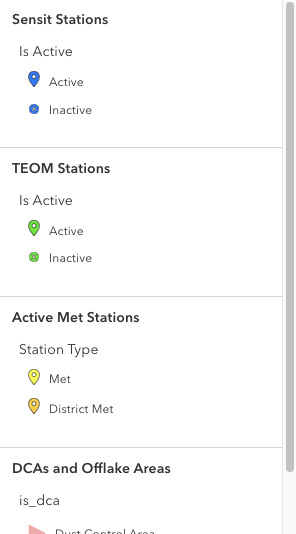
Figure: Above image shows the legend for the 'Sensit, TEOM and Met Stations' map on the 'Compliance Dashboard' page.
Zoom Map In/Out
A map can be zoomed in/out in several ways. Perhaps the easiest way is to use the mouse to drag a box around the area of interest. Alternatively, the Zoom toolbar can also be used.
Select the Zoom In button  to zoom the map in.
Select the Zoom Out button  to zoom the map out.
Default Map View
The default map view can be reset using the Default Map View button. This can be useful after zooming or panning the map.
The Default Map View button  is displayed in the top left corner of the map (below the Zoom toolbar).